Introduction
However it happened to me to find an incompatibility between the XGA signal generated by our videoconf device and the TV screen attached to it, which causes a truncation of the PC screenful as shown on the TV (and as transmitted to the world)
The workaround
Even more, it has been tested using as window manager fvwm (because that's what I use, not the default in our Suse distro, but anyhow available with it).
To the various applications (acrobat, firefox, office) such virtual desktop will act as the full screen.
If you know an application which, under your operating system,
generates such a virtual desktop, you are half-way to your solution.
You could perhaps try VNC-like applications.
The simplest case of such server is Xnest. I've been told a more modern variant is Xephyr. Both available in recent distros. I chose Xnest since I had it both on my w/s and on a laptop.
This can be done (on the laptot to be used in the videoconf, connected to the actual videoconf device) by trial-and-error, starting it by hand
Xnest :1 -geometry wxh+x+y [&]
One has to play on width w and height h
in pixel, and eventually on the offsets x ed y until the
Xnest window will appear on the videoconf TV entire and not truncated, excluding the
borders (decoration) generated by the window manager.
If no offsets are needed use -geometry wxh+0+0
You'll note the Xnest window is empty (no application running under such
server). See below for discussion about using a window manager. For the purposes of
the first test no application is necessary. It is however necessary to know
a way to terminate the Xnest instance.
If it was started in foreground (without final &) it is enough to type
control-C in the terminal where it was started. Otherwise one could kill the job
(e.g. kill %1), kill by pid, or do killall Xnest
In any case it is required to have a window manager running in the new server. For what the test is concerned, start Xnest in background (with final &) and in the same terminal start a window manager on the display belonging to Xnest :
fvwm -d :1 -f yournewconfigfile &
As starting point to write yournewconfigfile use a copy of your
standard configuration file ~/.fvwm/.fvmw2rc.
It will be enough that the new configuration file contain at least one
application (e.g. an xterm) from which one can issue commands and a way to
terminate Xnest.
It is useful that both the new and the pre-existing configuration files
contain appropriate definitions for the configuration of the desktops.
All position and size parameters are examples, to be adjusted case by case.
The screen look I'd wish to use during a presentation, should contain e.g. two desktops of a page each (with the idea to use one to run acroread or openoffice, and to have firefox active in the other). To switch across each other, I use the fvwm pager, which I keep always in view (on top of any other window), side by side to a clock (I use xdaliclock).
Since such configuration cannot be applied to the entire screen, it shall be applied
to what is running under Xnest. I shall however have a configuration also for the
"normal" display (:0) : it is spontaneous to put in such external configuration
a pager and a clock in the border area which is truncated outside
of the videoconf TV screen. This way "control operations" can be commanded out
of sight.
My choice is to use three desktops of which the last one is designed to
contain Xnest. The configuration of display :0 will have a way (e.g. from
root menu) to start Xnest and the fvmw therein contained. The configuration
of display :1 will include a way to terminate Xnest.
The definition of the third desktop after the other two (0 and 1)
The definition of a style forcing Xnest to start in the third desktop
The invocation of a script to start Xnest from root menu (in a position of choice, at the front or at the end of the rest of the root menu)
The startXnest script shall be located in the user path and will contain these two commands:
Xnest :1 -geometry 935x720+10-20 &
fvwm -d :1 -f NEST.fvwm2rc &
Note the geometry of Xnest could required negative offsets (e.g. in y) to move the title bar (added by the external window manager) outside of the videoconf screen.
The clock position shall be displaced (e.g. in the top right corner if this is outside the videoconf screen) and perhaps one should use a smaller clock and/or without seconds. Obviously all this (to be coded in StartFunction) is fully optional.
The pager position shall also be placed outside the videoconf screen, e.g. on the right hand border just below the clock. This is optional too, but suggested.
*FvwmPagerColumns 1
*FvwmPagerGeometry 50x180+957+45
Obviously in the place (StartFunction) where the pager is initialized, a modification to take into account the third desktop is needed
In the root menu definition I add a way to terminate Xnest
I define the two desktops wished, and also assigned a style so that firefox starts in the second one (adjust at your will)
DeskTopName 1 Web
DeskTopSize 1x1
In the StartFunction I define a pager with two desktops and position the clock in an appropriate place (on top of the screen, by trial-and-error in such a way not to obscure any element useful during the presentation, adjust at your will)
+ "I" Exec xdaliclock -seconds -24 -geometry 150x40+290+0 -builtin0 -cycle -datemode DDMMYY
The pager position has been put on the screen top, side by side with the above clock
*FvwmPagerColumns 2
*FvwmPagerGeometry 80x40+210+0
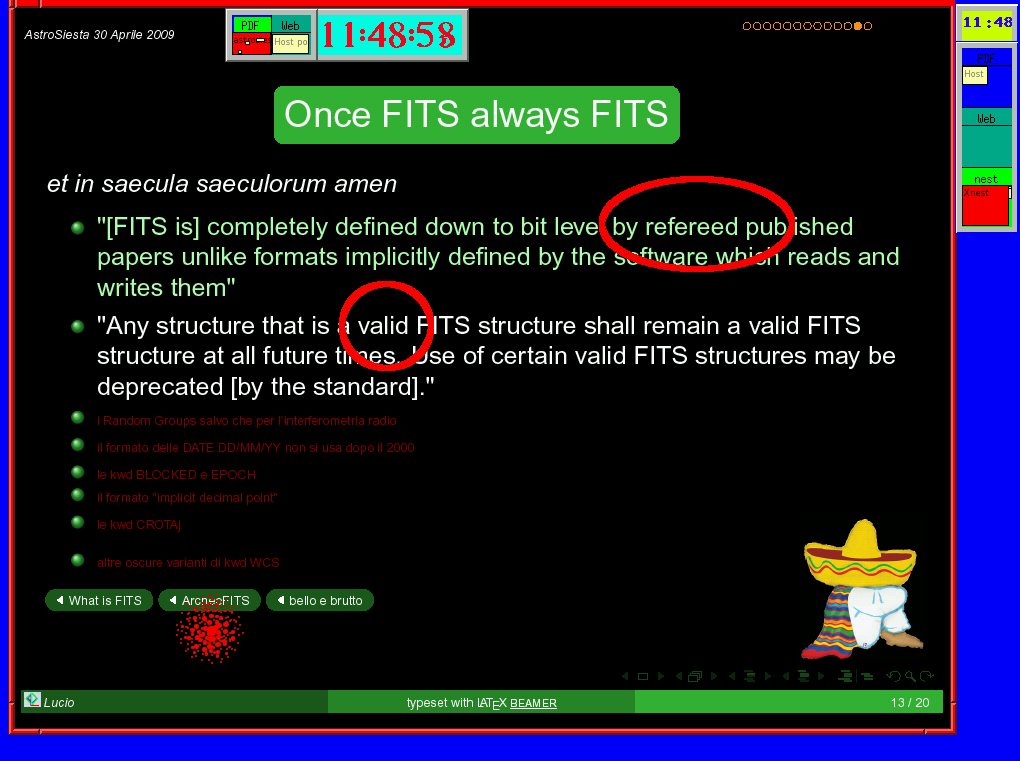
The blue background corresponds to the PC full screen (display :0) under which the clock and the pager in the extreme right column run.
Xnest (display :1) runs in the third desktop (hilighted in red in the pager), and has dimensions and offsets such to match the videoconf screen. Note the title bar has been displaced towards the top outside the PC screen. The Xnest session contains its own clock and pager (with two desktops), and shows an acroread presentation in full screen in the first desktop.
It shows also three "pseudo laser pointers", which can be obtained under fvwm as described elsewhere.
Screens within screens, Bendreth